






What is the UNO Q?
The Arduino UNO Q is a new single board computer from Arduino that is capable of running AI models from a very small package, fitting nicely on a 11x7 Technic frame. As an Arduino product, all of its software is publicly available and free, including Edge Impulse - Arduino’s web-based AI model training software.
What is Edge Impulse?
A browser-based machine learning platform that allows students and developers to build, train, and deploy AI models directly to edge devices.
Website Link:
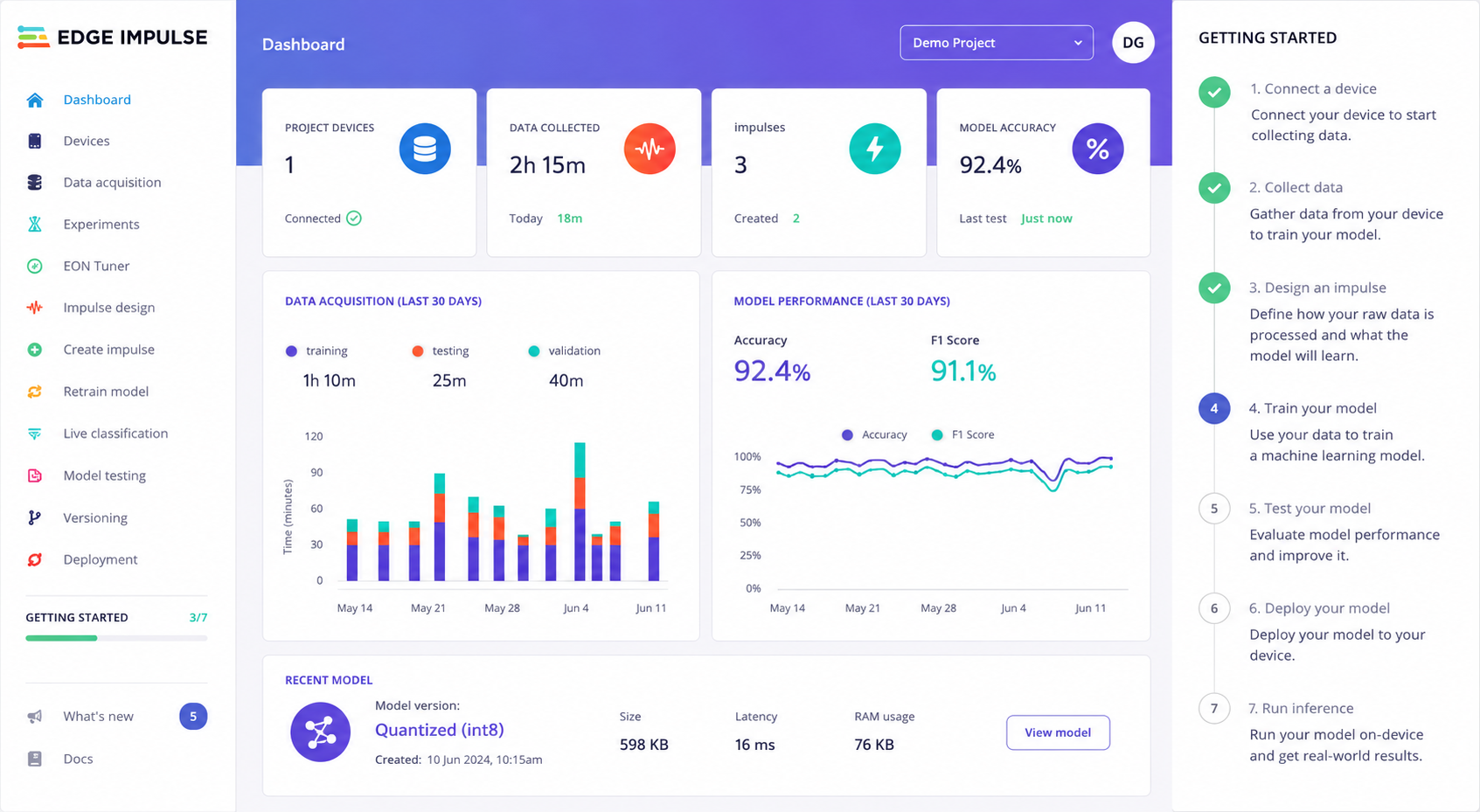
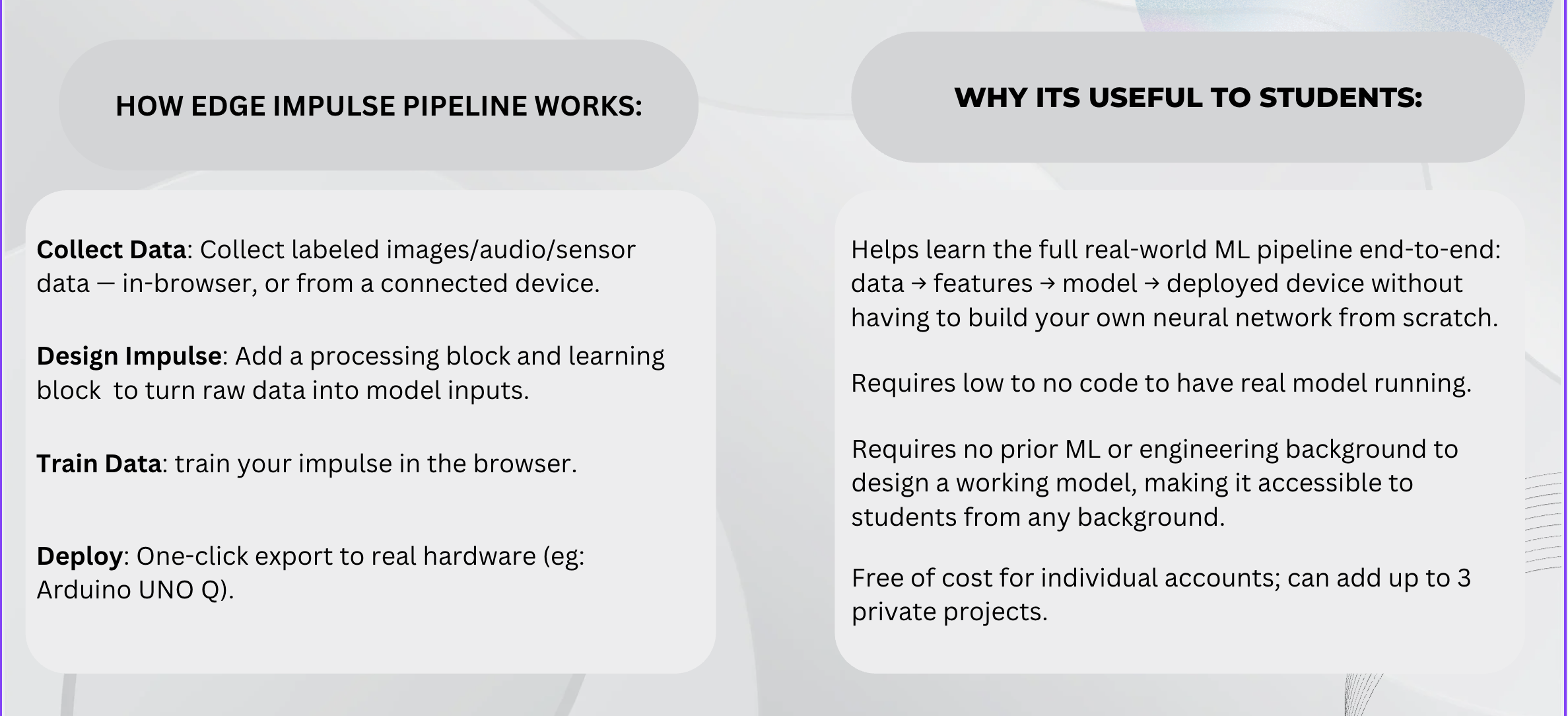
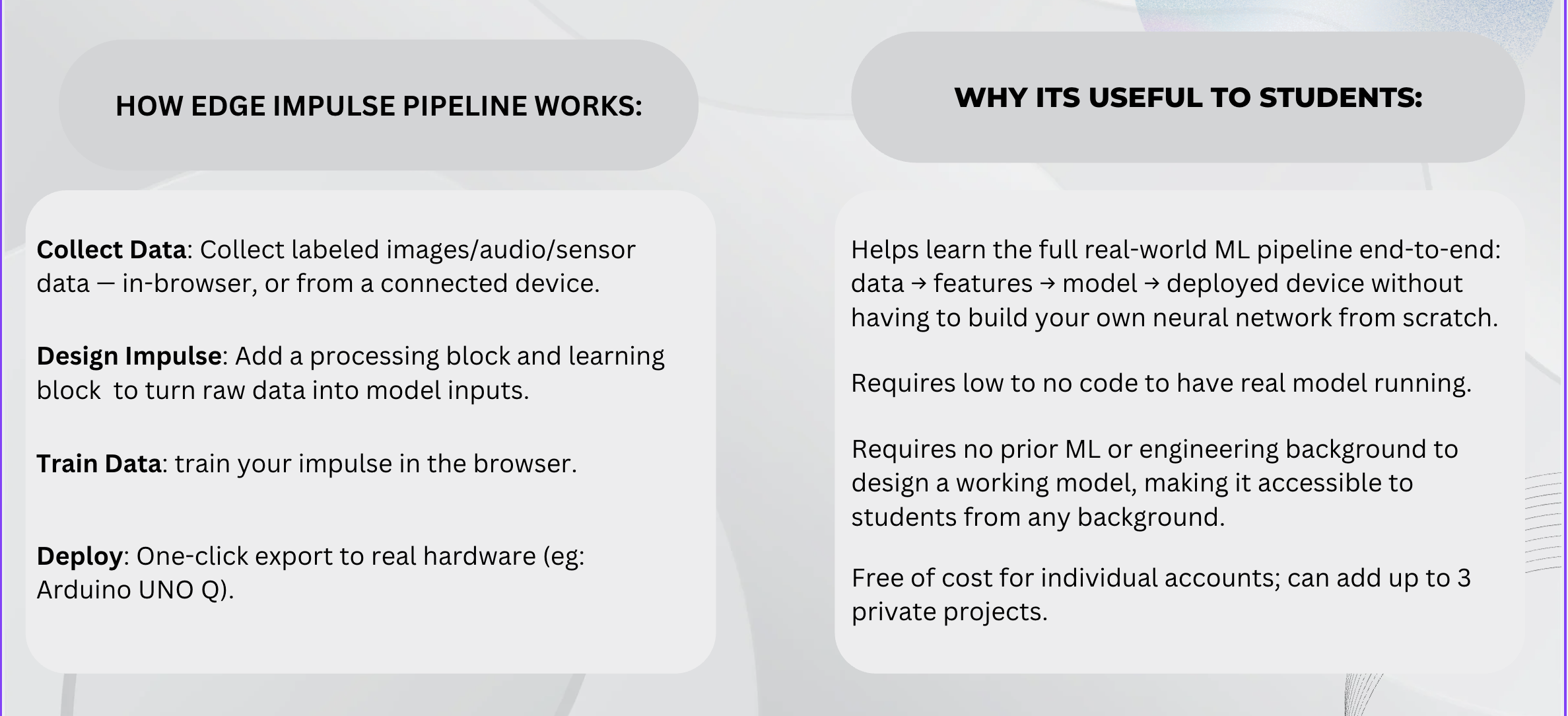
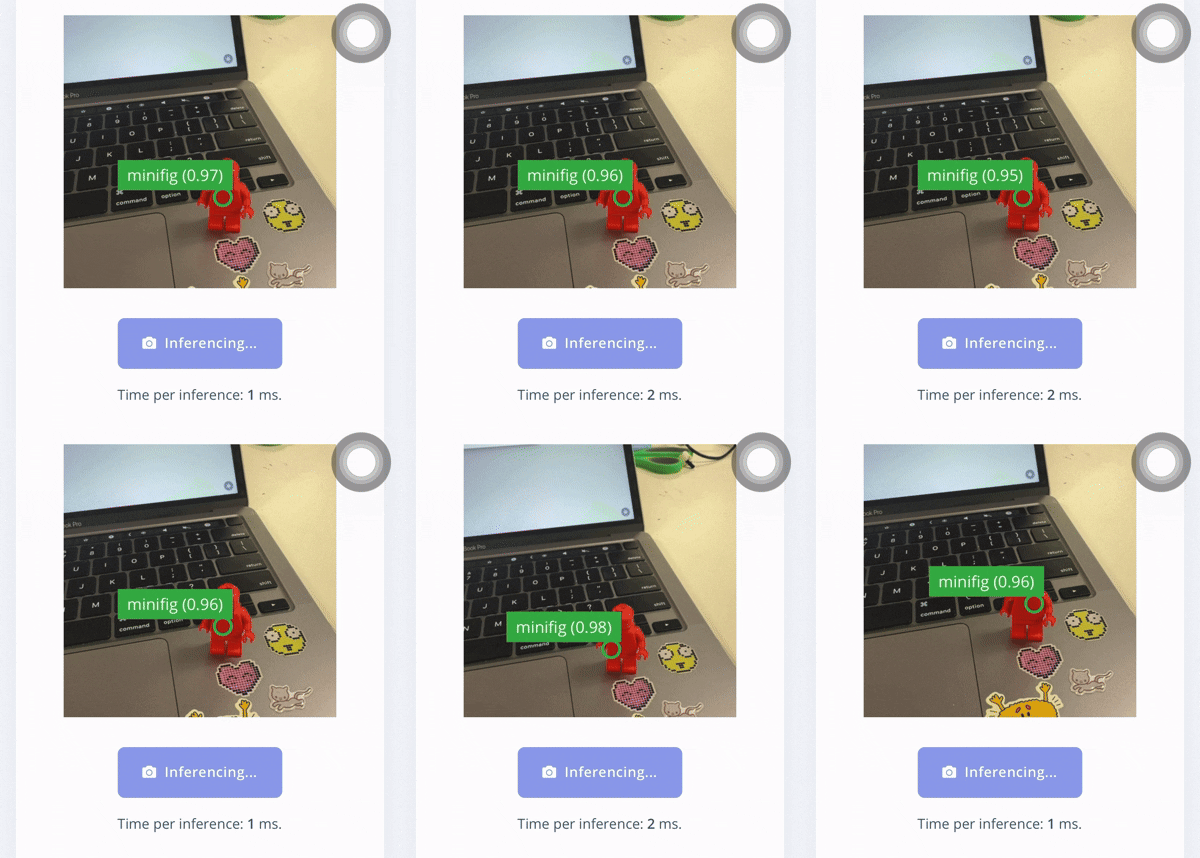
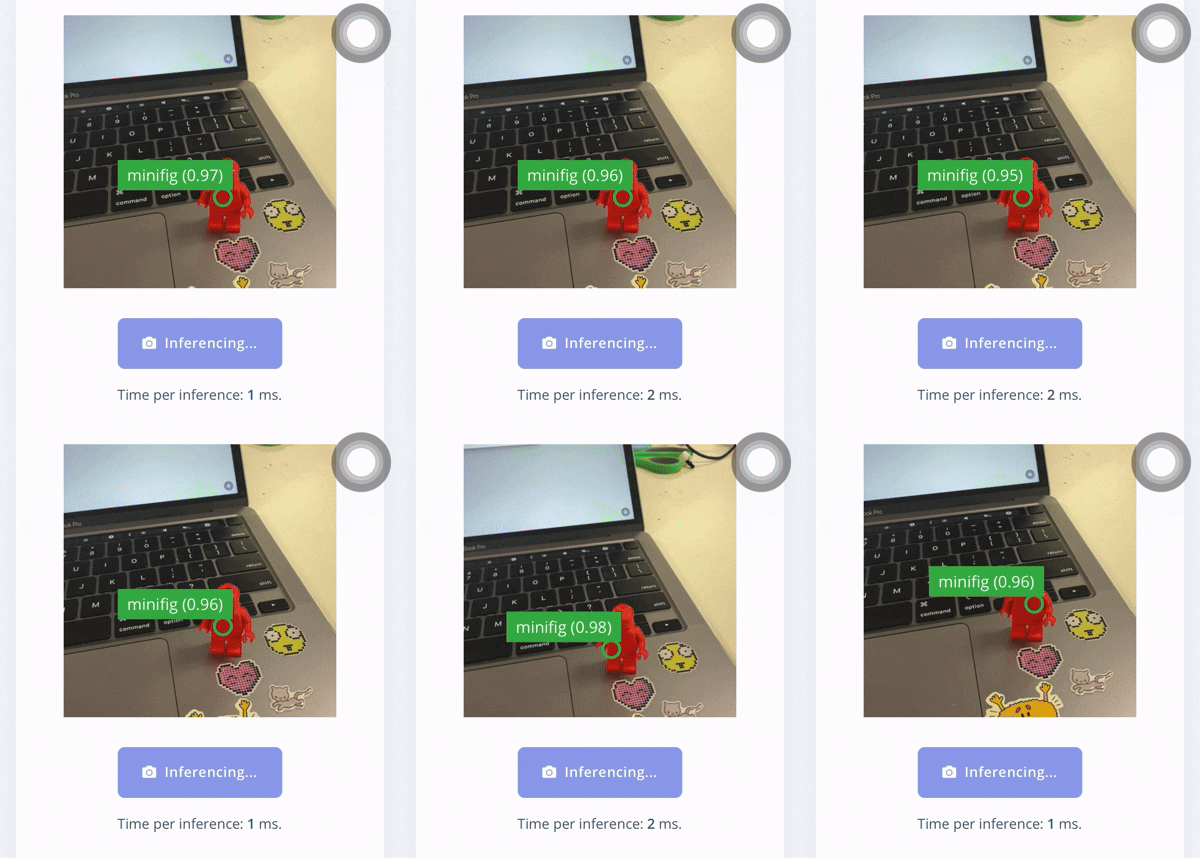
Example of an Object Detection Model that recognizes a Minifigure:
How is Edge Impulse related to UNO Q?
Edge Impulse has direct, built-in integration with the Arduino UNO Q via App Lab, making it easy to connect your trained ML model to your app using the bricks available in App Lab. In Edge Impulse Studio, students train a model, pick 'UNO Q' as the deployment target, click Build, and it's ready to run on the board.
So what does that have to do with LEGO?
LEGO Education’s products biggest strength is their ability to provide an incredible amount of hands-on and engaging learning activities. The UNO Q and it’s AI features expand those possibilities even further. With the familiarity of the LEGO building system, students can quickly build simple robots then spend more time exploring and learning about AI powered robotics.
Setup
There are two options available to make the LEGO hardware work with the UNO Q. The first is to use a custom brick, this is the easier option to use but won’t work with the examples on our Github as it is newer. The second option works with our examples, but requires the user to add two libraries to every app they want to develop.
NOTE: If you do not need to use Arduino’s Edge Impulse features or additional sensors for your project, you do not need either of these options. The official lego education library works normally when run in python scripts on the board.
NOTE: If you do not need to use Arduino’s Edge Impulse features or additional sensors for your project, you do not need either of these options. The official lego education library works normally when run in Python scripts on the board.
Option 1: Use a Custom Brick
Here is a step by step of how to add a custom brick to use LEGO Hardware and legoeducation library with UNO Q:
First, download this file to your computer:
Now we need to copy a custom brick into a project in App Lab.
LEG
Now we need to copy a custom brick into a project in App Lab.
Now we need to copy a custom brick into a project in App Lab.
This video walks through moving a working custom Arduino App Lab brick
into a brand-new app so it can talk to LEGO hardware over BLE.
Steps shown:
- Open Arduino App Lab with your board connected.
- From My Apps, click "Create new app" and give it a name.
- Open "Add App Brick" and choose "Create custom brick" at the bottom --
this scaffolds a blank brick (here named "lego") with starter
boilerplate inside bricks/<name>/init.py. - Right-click the "bricks" folder in the file browser and choose
"Import Folder." - Select the already-working brick folder downloaded earlier (lego.zip) (the one containing
init.py, brick_config.yaml, brick_compose.yaml, and a service/
folder with the Dockerfile + agent.py) - Write your test script in main.py, importing from the brick
(e.g.from lego import DoubleMotor, LegoError). - Click Run. App Lab builds the sketch, boots the board, and starts the
brick's sidecar container(lego-ble-1) alongside the main app
container. - Once both containers are up, the app connects to the real hardware
over BLE -- confirmed here by the DoubleMotor running on camera.
NOTE: If you are running this brick for the first time, you need to build the Docker container from within services. To do that you need to:
- Open up a terminal connection to your UNO-Q (hit this button on the bottom left)

- Go to the proper directory - it should be something like:
cd ~/ArduinoApps/<app-name>/bricks/lego/service - build the container
docker build -t lego-ble:1 . - Stop and remove any old containers that are running from before(if needed)
docker stop <app-name>-lego-ble-1
docker rm <app-name>-lego-ble-1
Option 2:
The files you will need are here: https://drive.google.com/file/d/126AfQdprC1Us5Jq3Frl9J8MUT576qM6N/view?usp=sharing
You can follow the text instructions here:
https://app.notion.com/p/UNOQ-LEGO-Motors-Tutorial-3812f91361d380b18e35fb892e4f6a14?source=copy_link
or the video tutorials here:
https://www.youtube.com/playlist?list=PLZ_-GYfDb7XI


